
Input
Performance values
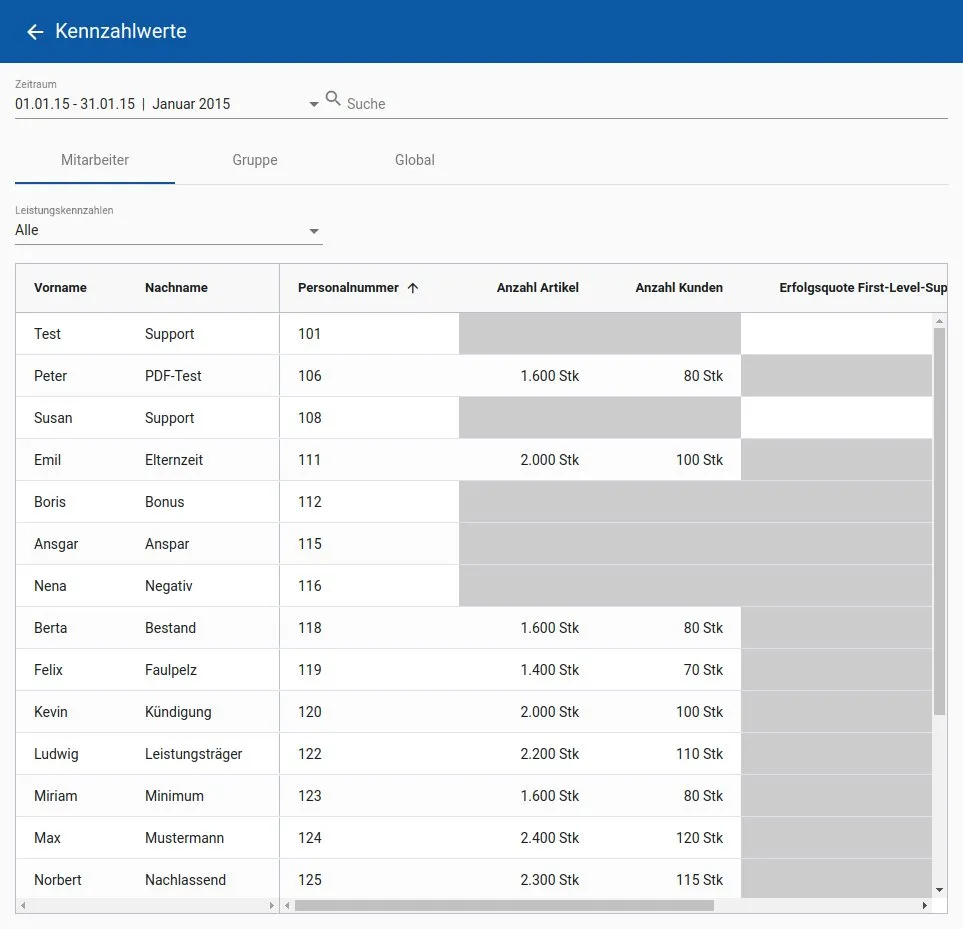
In the Performance values menu you can either view the values entered via the automatic interface(s) or - if no interface is available - enter them manually. E.g. for on-top targets for which there is no other recording option within the IT environment.
In the upper area you can select the period for which values should be entered. maXzie already tries to preselect the relevant time period. The required numbers can now be entered in tabular form in the three tabs Employees, Group and Global. Under the Employees tab you can find the individual actual values relating to an employee, under Group the actual values relating to a group, and under Global other global actual values.
No values need to be entered for cells with a gray background. Each table column offers the option of sorting by clicking on the heading. In addition, the view can be limited directly to a single performance indicator using the selection list above.
Transactions
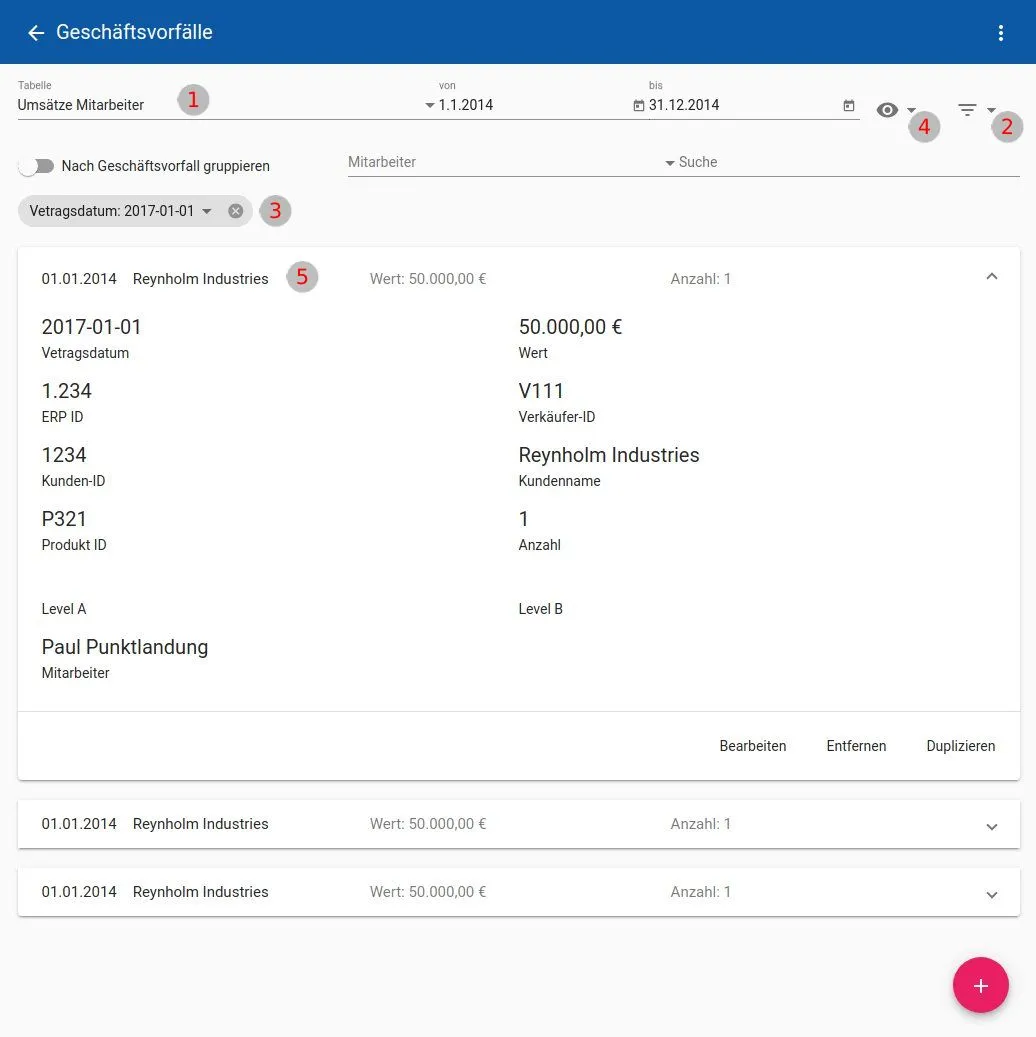
Filter: The transactions can be filtered using the fields in the upper area (1). The corresponding business transaction schemas can be selected using the Table field. The from and to fields only display transactions for the selected period. The Employee field can be used to select an individual employee to only display transactions for that employee. With the Search all fields of the transactions can be freely filtered by terms. By clicking on the (2) icon, additional filter criteria can be selected that relate to the individual field values of the business transaction. By clicking on a filter by category, another input option appears (3). After clicking on this, a value for filtering can be selected.
View: By clicking on the “eye” icon (4), you can choose between the card view (current view) and the table view.
Cards: When the cards are closed (seen in the bottom of the picture), only individual pieces of information are presented. By clicking on a closed card, it opens and is displayed like (5). Here you can view all information about the open business transaction and modify the business transaction by clicking on one of the buttons in the bottom bar. If these buttons are not displayed, editing transactions may be blocked.
Create new business transaction: By clicking on the ”+” button at the bottom right, new transactions can be created for the business transaction selected in (1). A dialog opens in which the values can be entered.
Payment
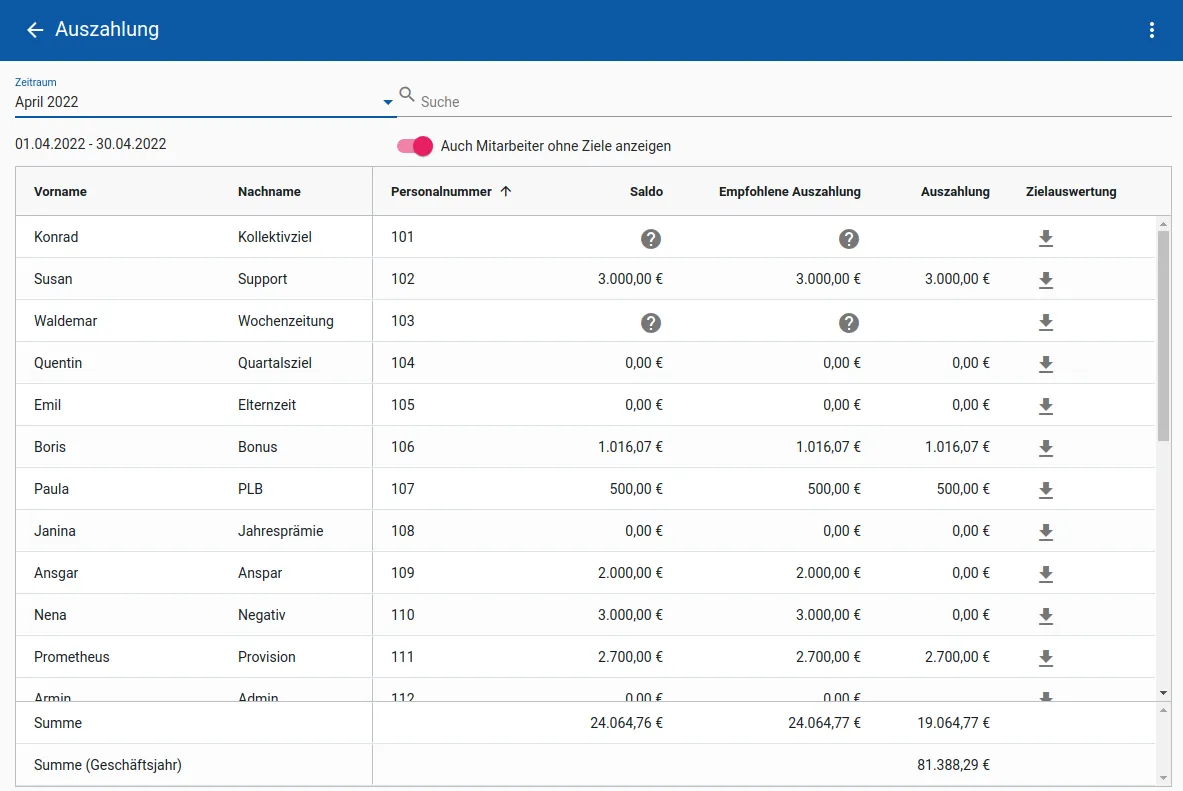
Bonus, balance and payment: Based on the current target achievement levels, maXzie calculates a bonus for each employee and each completed period. Before completing a target, the corresponding reward is determined by a forecast (depending on the payment mode selected in the target settings). A monthly payment in maXzie is set for each employee.
The balance of an employee is calculated from the difference between the bonuses achieved so far and the payments made so far.
To assist in setting payments, maXzie recommends a payment amount, which is displayed in the Recommended payment
column in the table under Input -> payment.
The calculation of the recommended payment can be adapted
specifically to the wishes of the customer.
Recommended payment: Depending on the agreement, maXzie calculates a recommended payment. For example, payment strategies such as bonus protection or a minimum monthly bonus are possible.
Total: This line displays the totals of the balance, recommended payment and payment of the employees displayed in the table.
Total (fiscal year): This line displays the total of the payments for the previous fiscal year including the currently selected month for the employees displayed in the table.
Payroll
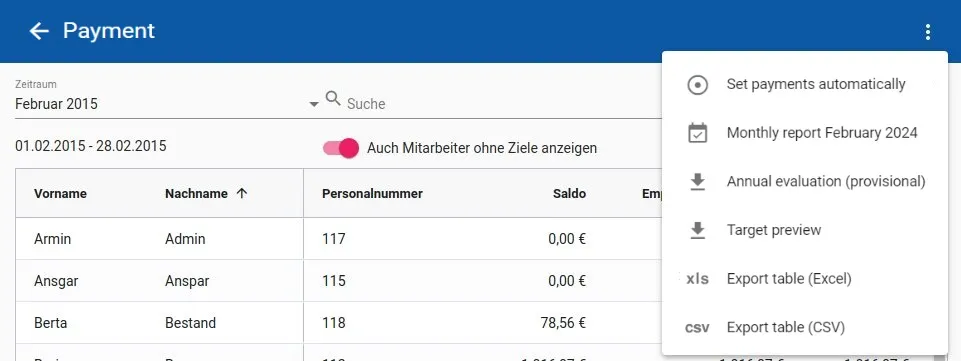
Setting the payment: Payments can now be made with just 3 mouse clicks. In order to set the payment recommended by maXzie as a payment for all employees, an authorized user selects the Set payments automatically option in the 3-point menu (in Input -> Payment). The payments can then be edited manually if necessary. Previously set payment values are also not overwritten by the Set payments automatically option.
Create PDF reports: In order to download the PDF reports generated by maXzie for all employees, an authorized user selects the Monthly report option in the 3-point menu (in Input -> Payment). The reports of the individual employees can be found in the downloaded .zip.
Export of payment data: A table with payment data can be downloaded for each month under Input -> Payment. To do this, select one of the following options from the 3-point menu:
- Export table (Excel)
- Export table (CSV)