
Core Data
Employees
Section titled “Employees”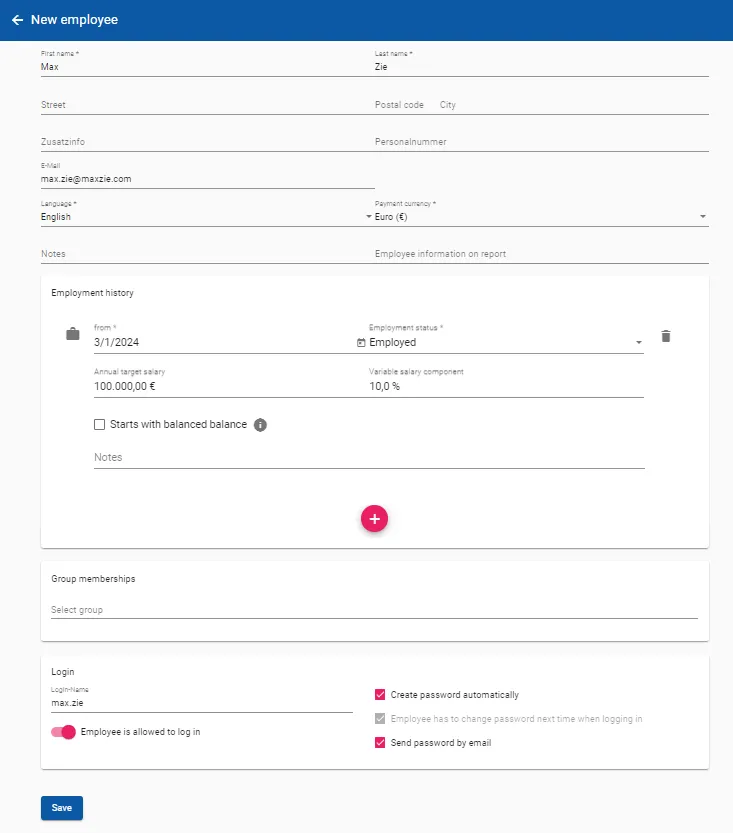
Employees can be created and edited in the Employees menu. The salutation, first and last name, language, currency and employment history must be set for each employee. The data from employment history is automatically used to calculate the target bonus amount for a goal (depending on the type of goal).
In addition, when authenticated by maXzie, a login name and password can be set via the Login card. The password can either be set manually or generated by maXzie. This is then sent via email or displayed to the current user. After the first login, the employee then has to change his password.
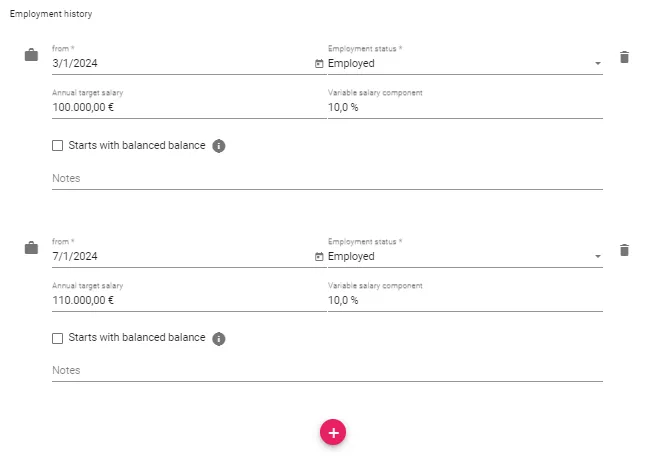
The employment history of the employee is displayed via the employment history, i.e. any number of time periods with an employment status (such as employed, not employed, parental leave, …) and, if applicable, the annual target salary and the variable portion of the annual target salary. For example, as shown on the left, you can set a salary increase for the middle of the year at the beginning of the year. maXzie then takes everything else into account at the appropriate time.
Effect of the employment history states:
- Employed: Regular employment state
- Not employed: No longer employed by the company, e.g., due to termination. Ongoing targets are canceled and the final bonus for the previous period is calculated
- Unpaid leave/parental leave: The bonus amount for target achievement is reduced by the specified period on a daily basis. Please note: The target amount is not adjusted. If this is desired, e.g., to adjust the achievability of the target value to the period actually worked, the adjustment must be made manually.
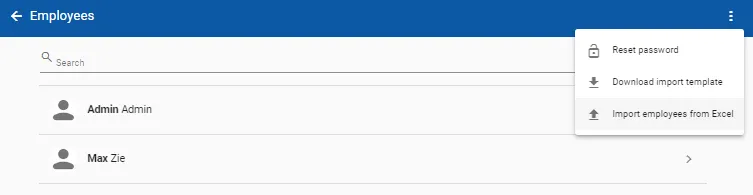
As an alternative to creating employees in the maXzie interface, an Excel import can also be used to create multiple employees. To do this, you can first download an Excel template to fill using the three-point menu and then import it again via the interface.
Videos
Section titled “Videos”Groups
Section titled “Groups”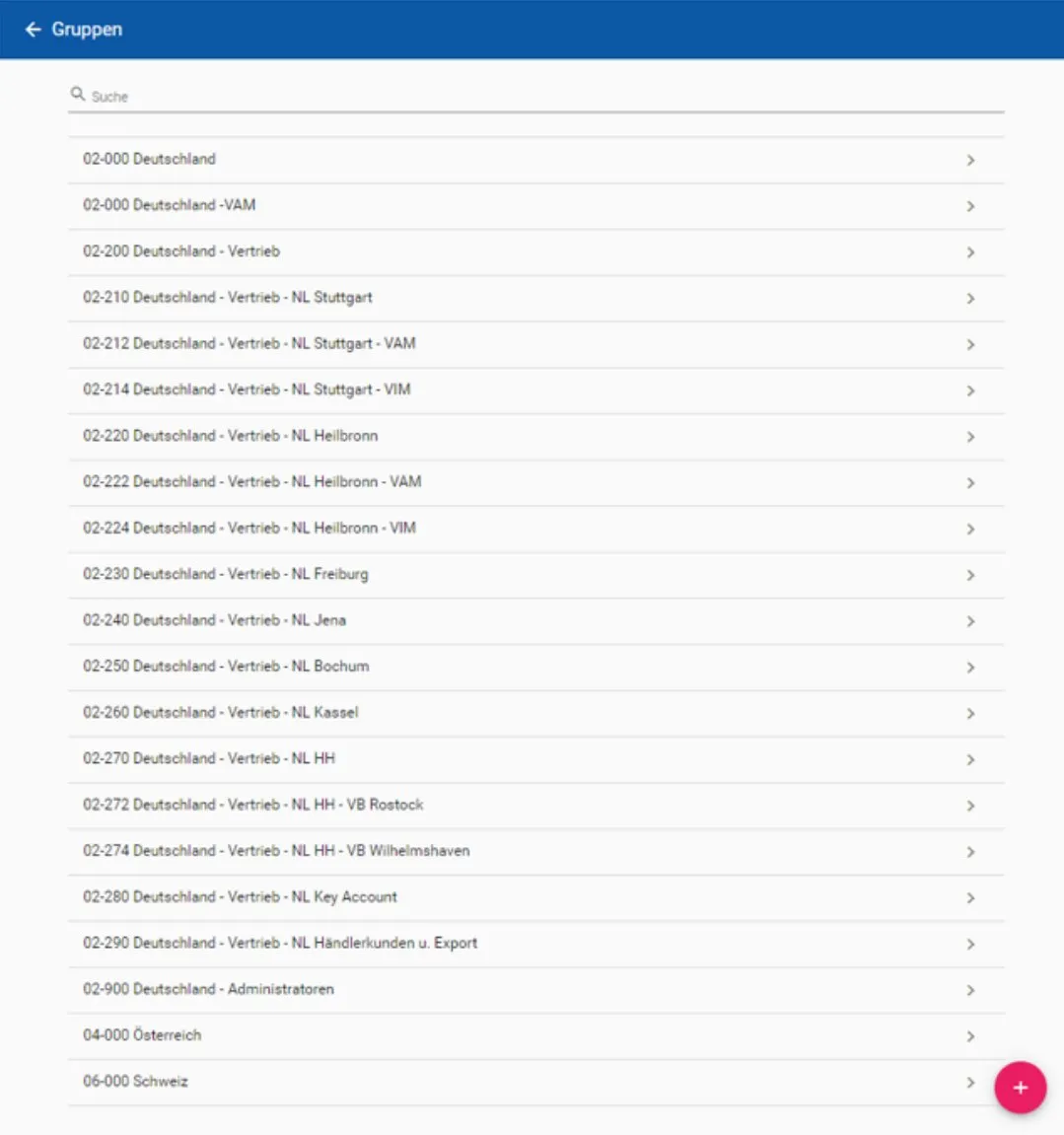
Groups can be created and edited in the Groups menu. Any number of groups with simple or complex hierarchies can be defined. Groups can be used for different applications, such as assigning access rights (permissions), assigning goals or evaluating employee teams.
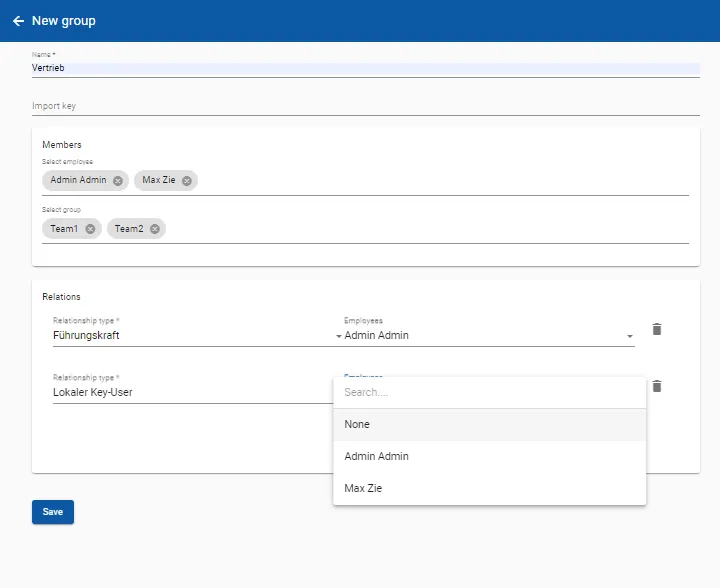
A name and members are required to define groups. Members can be individual employees or entire groups. The import key can be set if group-specific key figure values are to be imported for this group. Employees, such as team leaders or managers, can be linked to the group via relationships. This can make it easier to assign permissions.
Videos
Section titled “Videos”Permissions
Section titled “Permissions”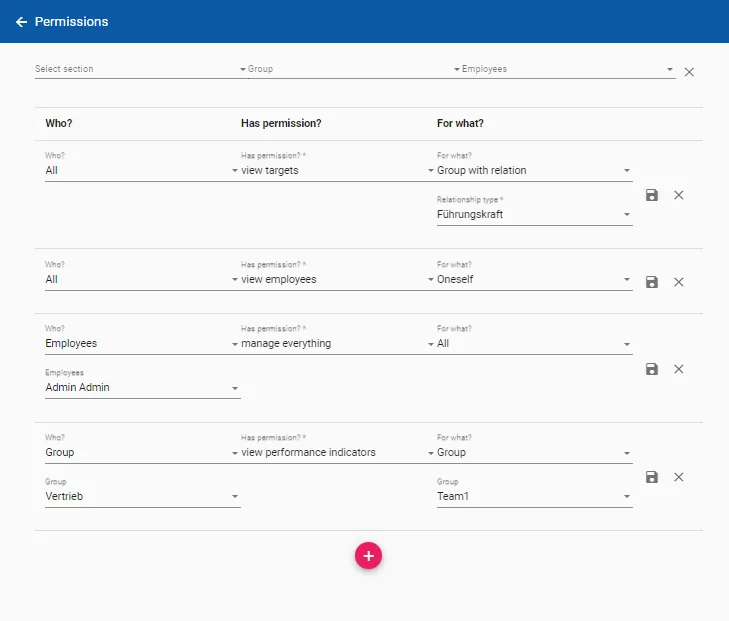
Permissions are specifically assigned in maXzie. For this purpose, super users are defined who have all authorizations. This includes the permission to define permissions for individual users in the interface. Standard users can always view their own evaluation, download payout reports and change their own password even without additional permissions.
For targeted and efficient setting of authorizations, employees can be related to groups through a role. This
relationship is stored in the corresponding groups and can be used in the authorization settings.
Setting
permissions is very intuitive. The following questions must be answered
- Who?: Wo receives the permission.
- Has permission?: These are the permissions to be assigned here. It is important to know that the permissions to manage always include the permission to view
- For what?: This is where you determine whose data the authorization applies to. The option Group with relation is particularly noteworthy. This can also be used to select a group relation, such as Manager.
Example: If I want all employees who have been assigned the role Manager for certain groups to be able to manage the core data for “their” group members, I select the following:
- Who?: All
- Has permission?: manage core data
- For what?: group with relation > Manager