
Updates
28.08.2026 | API Token
Section titled “28.08.2026 | API Token”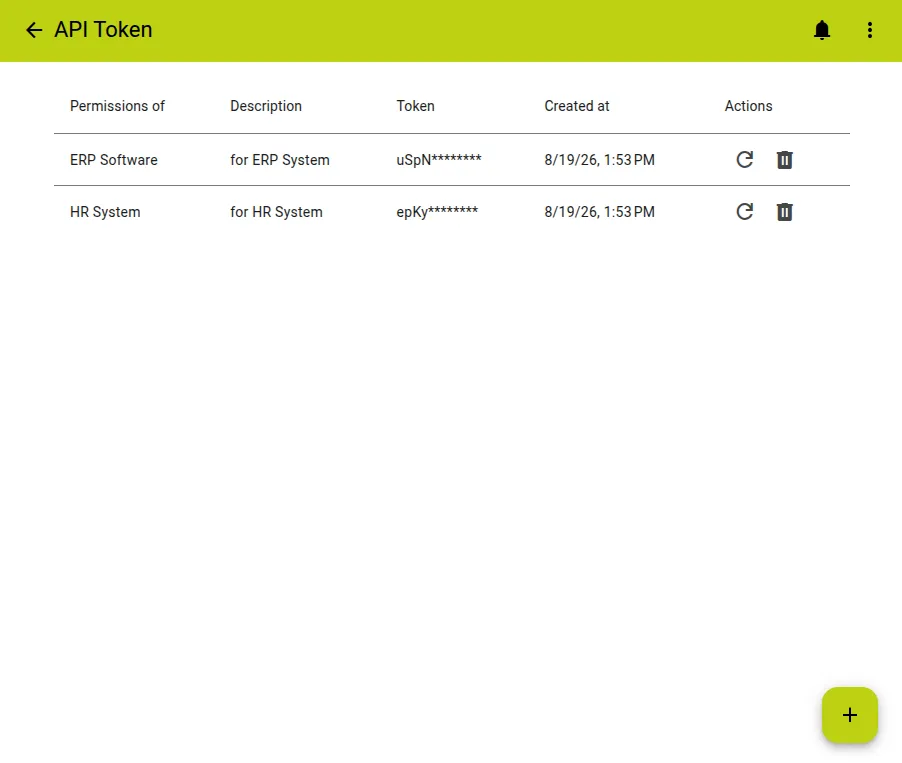
For automatic authentication of external systems accessing the maXzie API, so-called API Tokens can now be created. These tokens are linked to a specific employee and can be revoked at any time. An API Token has the same permissions as the linked employee.
All requests authenticated with an API Token are displayed in the log as changes made by the linked employee.
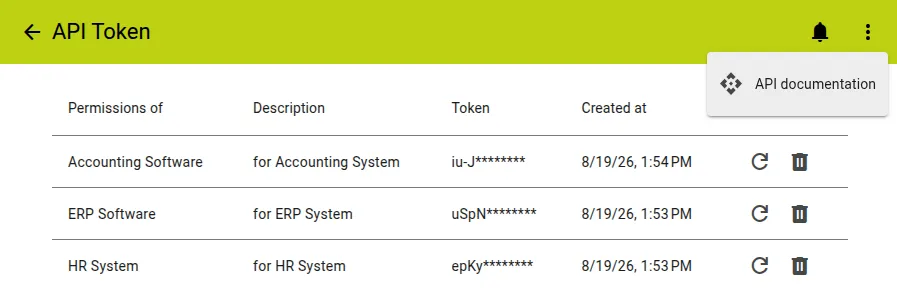
All endpoints that can be used with an API Token are described in the API documentation. It can be accessed via the three-dot menu in the API Token section.
13.03.2026 | Lock performance values within a timeframe
Section titled “13.03.2026 | Lock performance values within a timeframe”

All the performance values within the selected timeframe can now be locked. To do this, click on Lock performance values under the three-dot menu and select the timeframe to lock in the popped up dialog.
29.01.2026 | Download the employee and target tables
Section titled “29.01.2026 | Download the employee and target tables”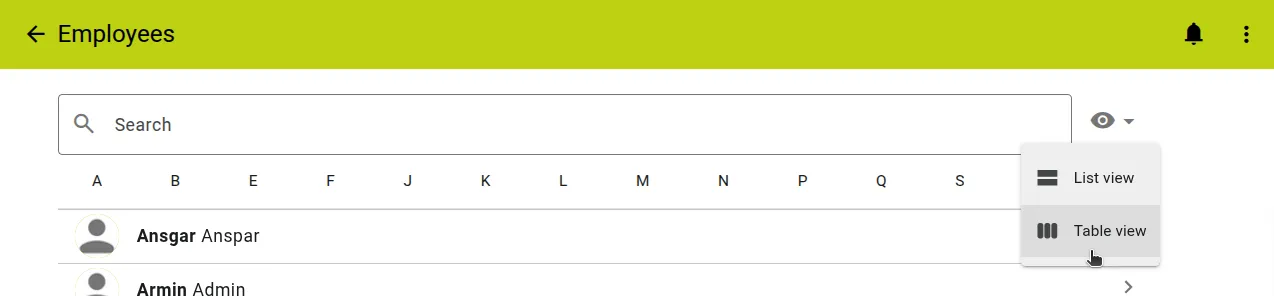
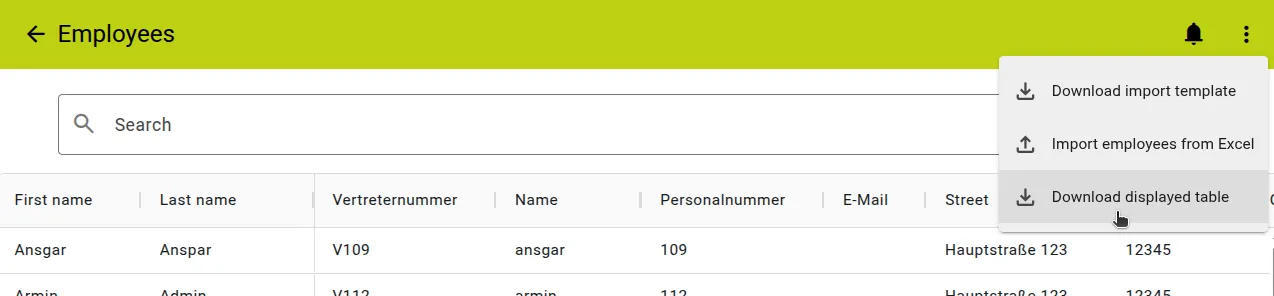
The tables displayed in the Employee and Target views can now be downloaded from maXzie. To do this, select the “Table view” from the corresponding list using the view selection. After loading the table, you can download it via the “Download displayed table” option in the three-dot menu.
All applied search and filter options are retained in the downloaded table.
24.10.2025 | New procotol possibilities
Section titled “24.10.2025 | New procotol possibilities”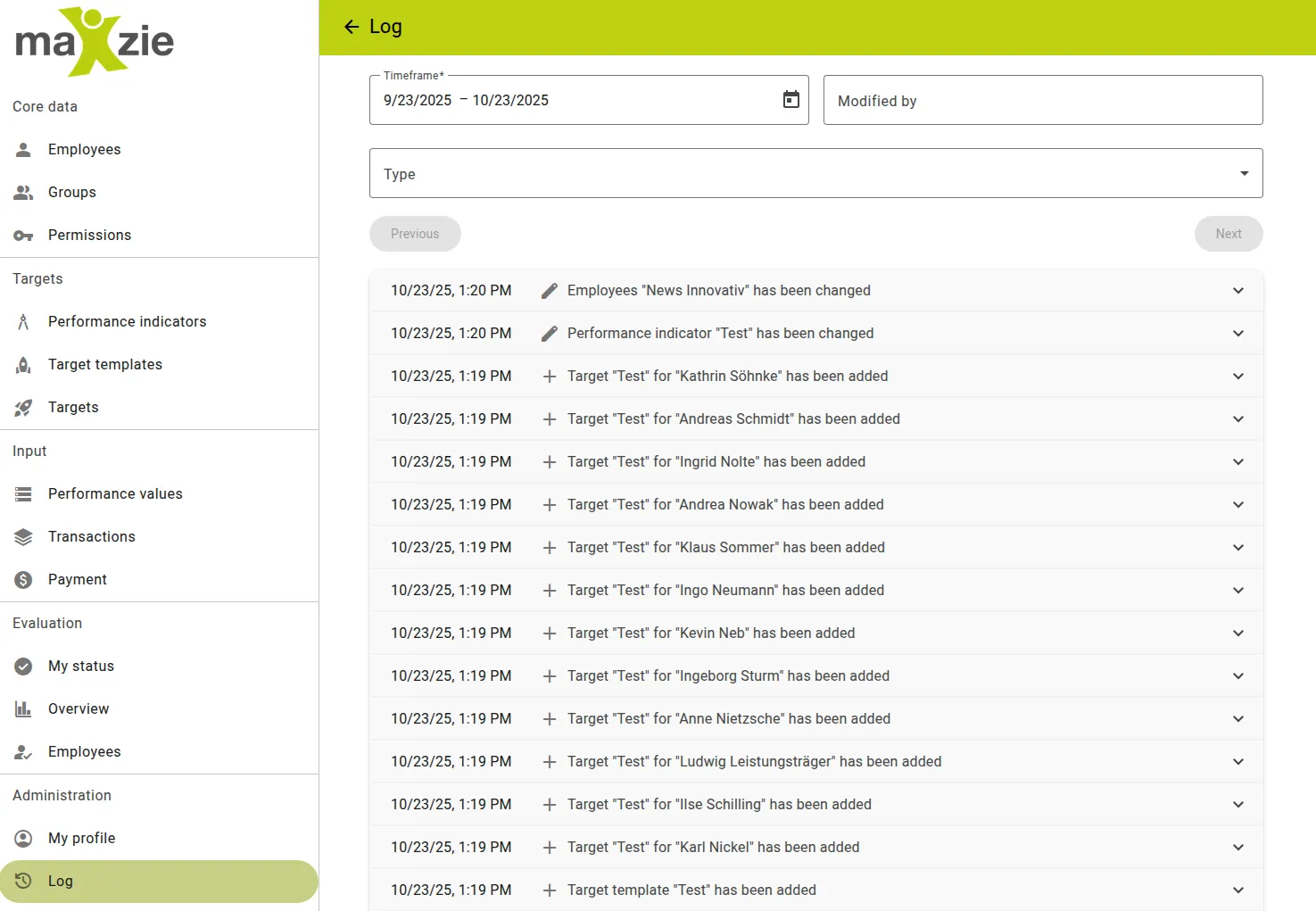
A new logging option has been integrated into maXzie. Viewing this log is available for superusers. You can find the log in the menu under “Administration.” A list of all changes to the following objects is tracked:
- Employees
- Groups
- Permissions
- Performance Indicators
- Target Templates
- Targets
- Payment
Individual entries can be opened to obtain further information.
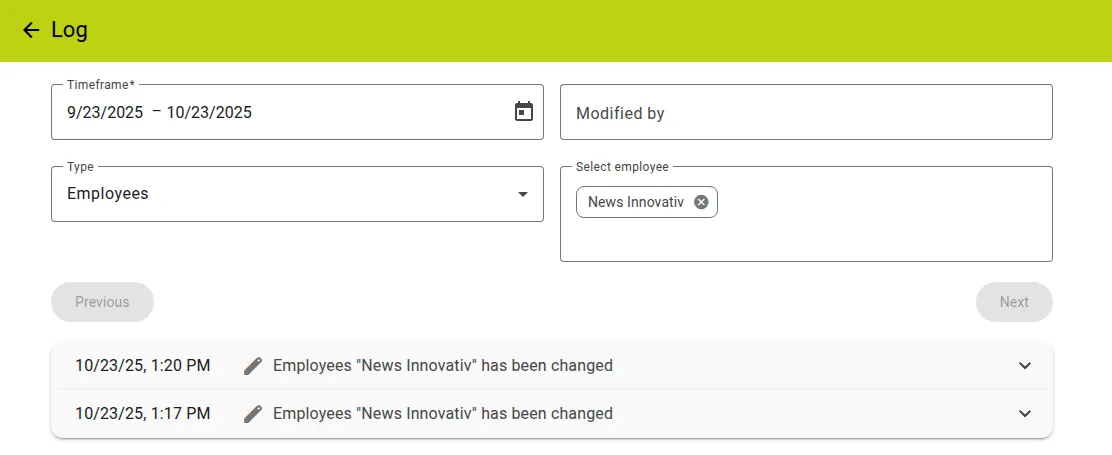
Entries can also be filtered by:
- Time period
- Who changed the object
- Object type
- Selecting multiple objects
Approximately 50 entries are displayed per page. The pages can be browsed using the “Next” and “Previous” buttons.
15.05.2025 | New design of maXzie
Section titled “15.05.2025 | New design of maXzie”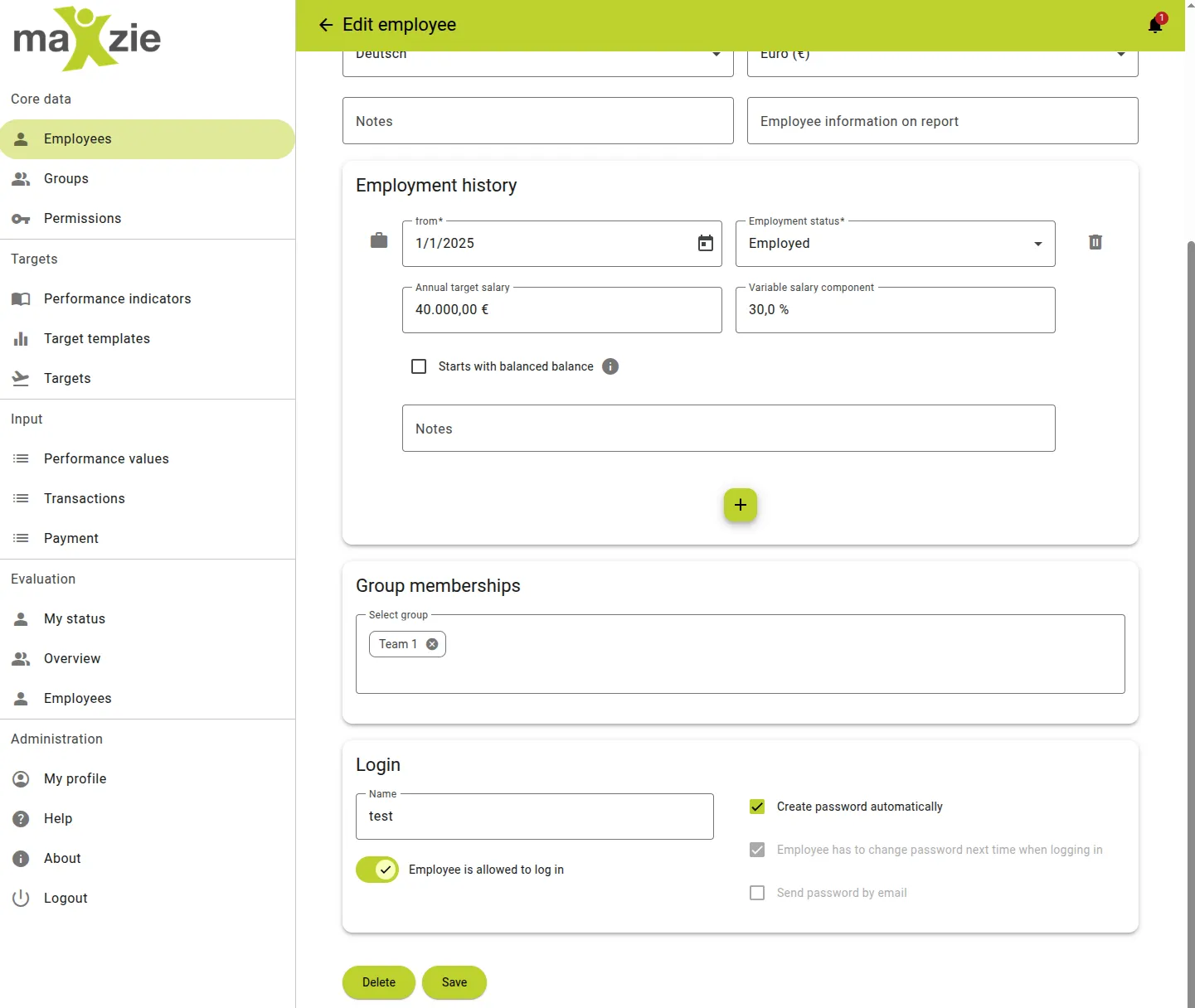
The maXzie design has been adapted to our new corporate identity. All design elements have been revised and now boast a more contemporary look. The main color has been changed from blue, and the accent color from pink to the maXzie green. All design components, such as buttons, lists, form fields, etc., have been updated to the current web standard, thus allowing for improved accessibility.
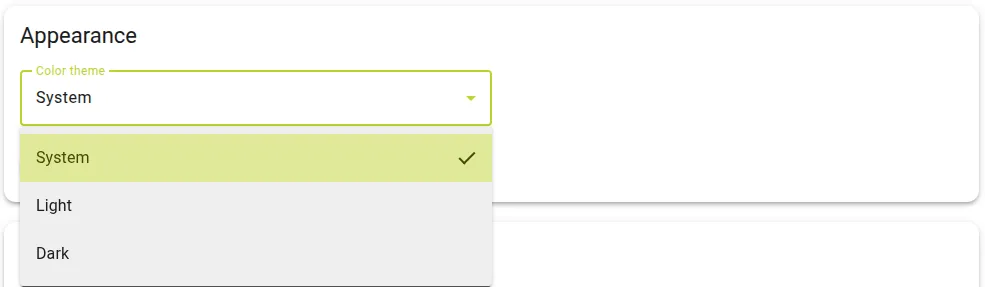
Additionally, maXzie now offers the option of displaying it in a light or dark theme. The default theme is the same as your operating system’s. You can customize the theme in the Profile section, either as the default System theme or as Light or Dark. Feel free to experiment and find out which theme you like best!
28.01.2025 | Archiving of target templates
Section titled “28.01.2025 | Archiving of target templates”
Target templates can now be archived for a better overview. Archived target templates will no longer be displayed in selection lists.
To archive, simply activate the archived checkbox in the target template input screen. If this checkbox is disabled, you may need to click the “Allow overwrite” button first. IMPORTANT: If a target template has other target templates that depend on it, these will also be archived.

In the target templates overview, the archived target templates can be displayed again by selecting the corresponding option in the three-dot menu.
21.01.2025 | Archiving of performance indicators
Section titled “21.01.2025 | Archiving of performance indicators”
Performance indicators can now be archived for a better overview. Archived performance indicators will no longer be displayed in selection lists.
To archive, simply activate the archived checkbox in the performance indicator input screen. If archived performance indicators are still used in targets, this is not a problem. In the target and target template input screen, these performance indicators are then marked with an archived icon.

In the performance indicators overview, the archived performance indicators can be displayed again by selecting the corresponding option in the three-dot menu.