
Targets
In order to create targets, a clear hierarchy must be followed. First, a performance indicator is defined, then the target templates and targets can be created and assigned!
Performance indicators
Section titled “Performance indicators”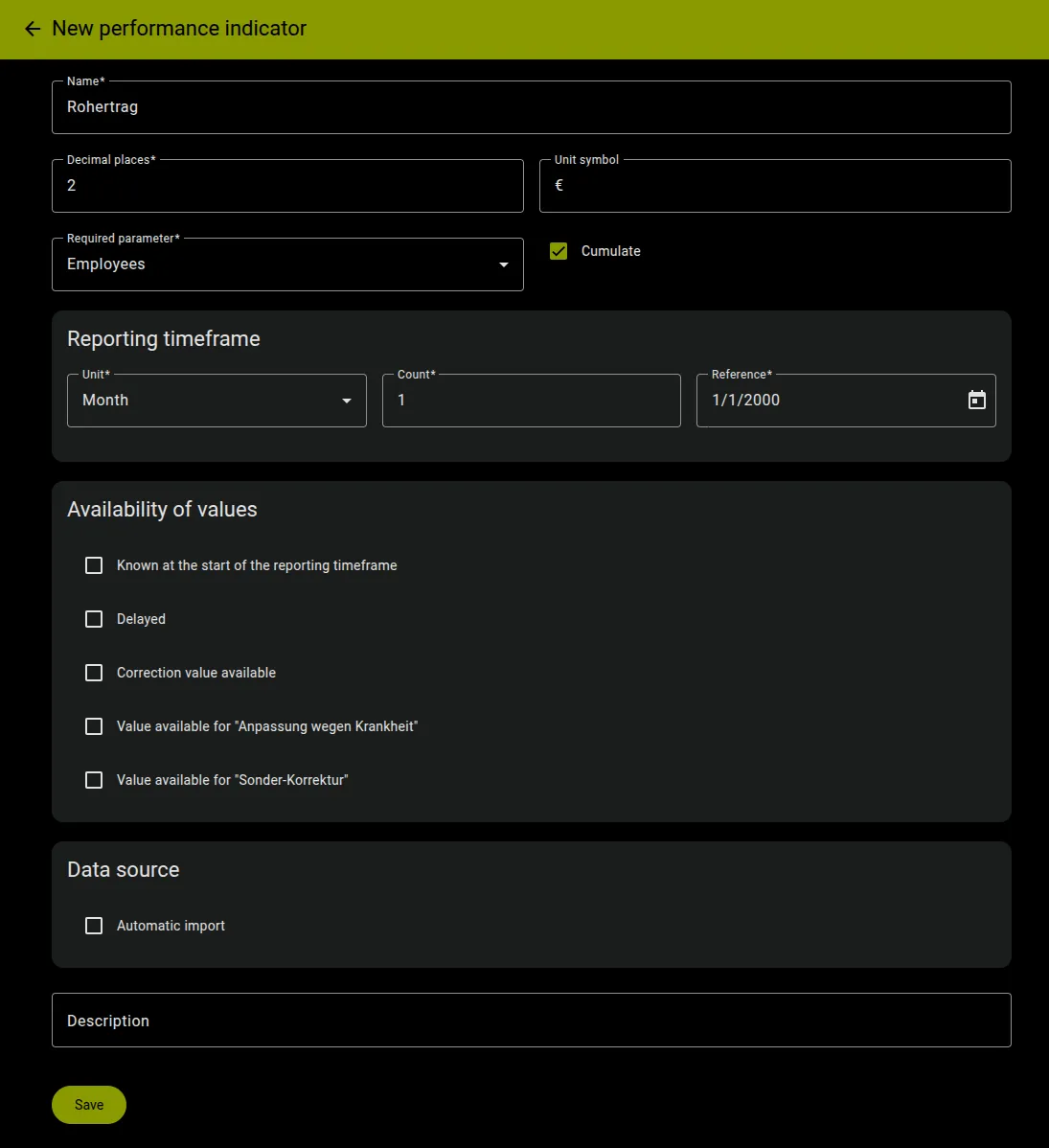
So-called performance indicators (key performance indicators / KPIs) are used to measure the performance of employees,
groups or the entire company. A predefined performance indicator is required for each target. Each performance indicator
requires a name, the number of decimal places, a unit symbol, the required parameter and the reporting period.
The
required parameter is either Employee, Group or None. This determines to whom the
performance values (actual values) should be assigned. For example,
employee-related, group-related and global sales can be mapped.
The Cumulate field can be used to determine whether the performance values are cumulative (e.g. sales or gross profit)
or non-cumulative (e.g. return rate or average support speed).
The report period defines how regularly the
performance values (actual values) are reported, for example weekly, monthly, half-yearly or just annually.
The
delay can be used to determine whether values are only available later. For example, values could only be delivered a
month late.
The field Known at the start of the reporting timeframe activates the option to set the key performance indicator values to finalized immediately upon import. This option should be selected if the payout for the targets associated with this key performance indicator happens in the current month (and not in the following month).
The Delayed field causes a delay in the finalization of the performance indicator (see delaying the performance value). The delay specified when activated is added to the period for which values are finalized by the import. If the specified delay is two months, for example, the import would (with default settings) set the values for this performance indicator for May to finalized in August instead of the following month, which would be June.
The Correction value available checkbox can be used to add a correction value for this performance indicator. This leads to an additional column Correction value in the performance values for the corresponding performance indicator. If the cumulated field is activated for the corresponding performance indicator, the correction value is added to the performance value of the performance indicator. If this field is not activated, the correction value replaces the performance value for this performance indicator.
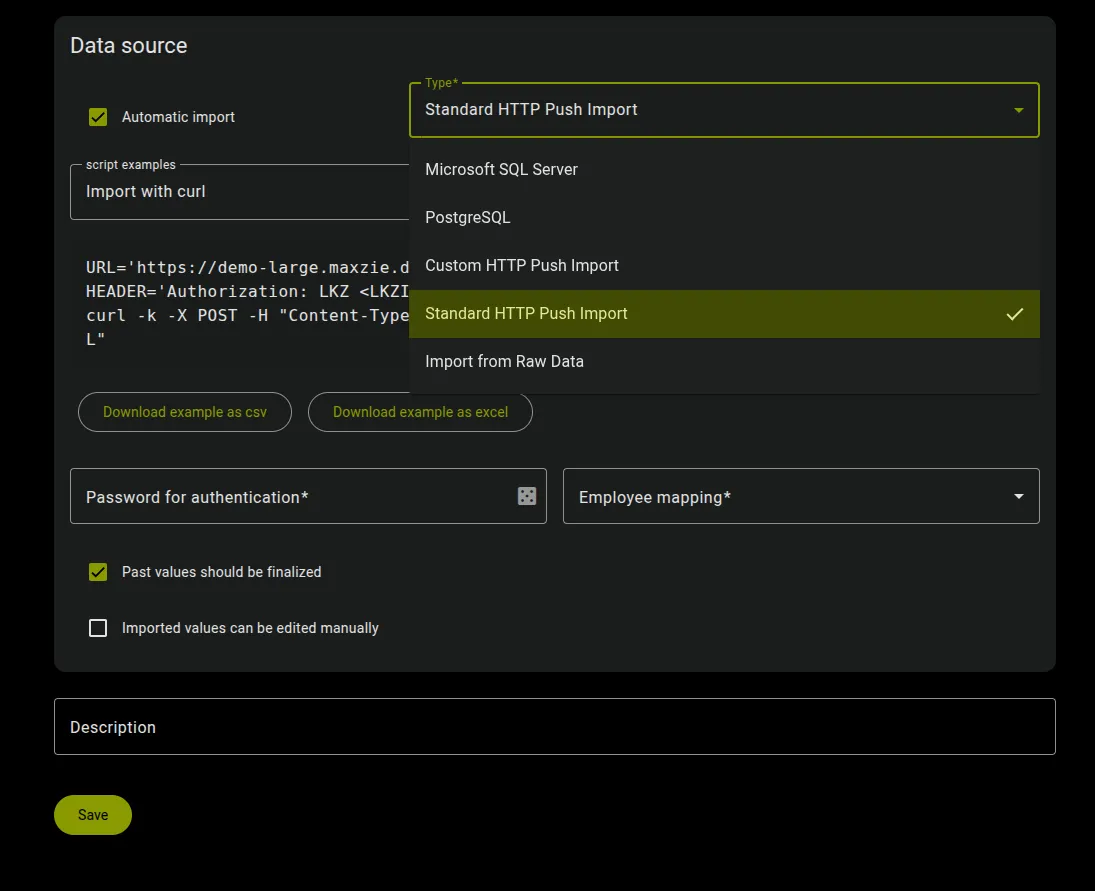
If the actual numbers are to be imported automatically via an interface, different import methods can be configured using the Data Source card. For the standard import (Standard HTTP Push Import), example scripts for your IT can be accessed to make setting up the import easier.
If you select the standard import, the Excel or csv files can also be uploaded to maXzie via the user interface. To do this, you must click on the three-dot menu in the top right of the corresponding performance indicator. By clicking on Import performance values with Excel or Import performance values with CSV, a dialog with two settings opens:
- Number of rows to skip: If the import file has headings, for example, this setting can be used to skip the corresponding first X rows. If the import file has no heading rows, the setting 0 is correct here.
- Use accumulation timeframe: If your file contains several values per report period and employee/group that the import should sum up, this setting can be used. By specifying the from and to dates, only values within this period are imported and summed up. If this behavior is not desired, the checkmark can be deactivated.
In addition, example files can be downloaded from the three-dot menu, which can be used to create the corresponding import file.
By activating the Archived checkbox the performance indicator can be hidden in lists.
Videos
Section titled “Videos”Target templates
Section titled “Target templates”To create a target template, a performance indicator must first be defined!
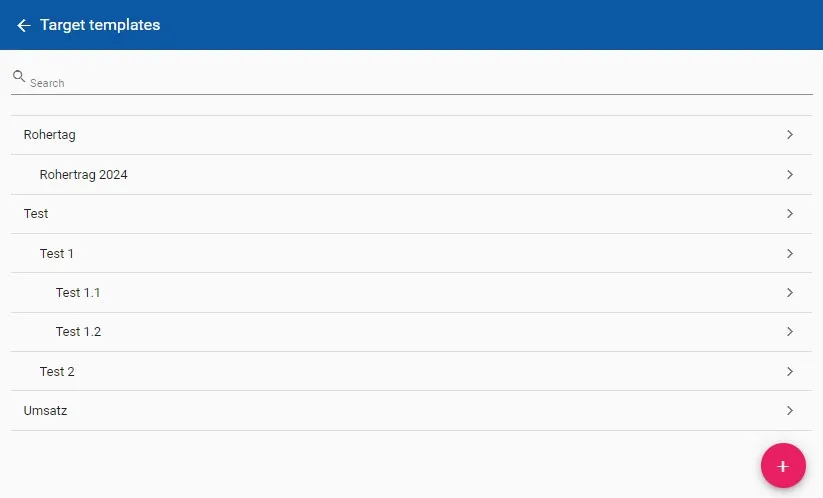
Target templates are used to make it easier/faster when creating new targets and filtering in the evaluation. Most of the settings needed to define new targets can be prefilled in targets templates. Target templates can be created and managed directly in the maXzie interface.
In addition to these settings, target templates can be archived. By activating the Archived checkbox, the target template and all target templates derived from this target template will be hidden in lists.
Videos
Section titled “Videos”Targets
Section titled “Targets”Targets can only be assigned after a performance indicator was defined! Creating a target templates can make it easier to assign targets.
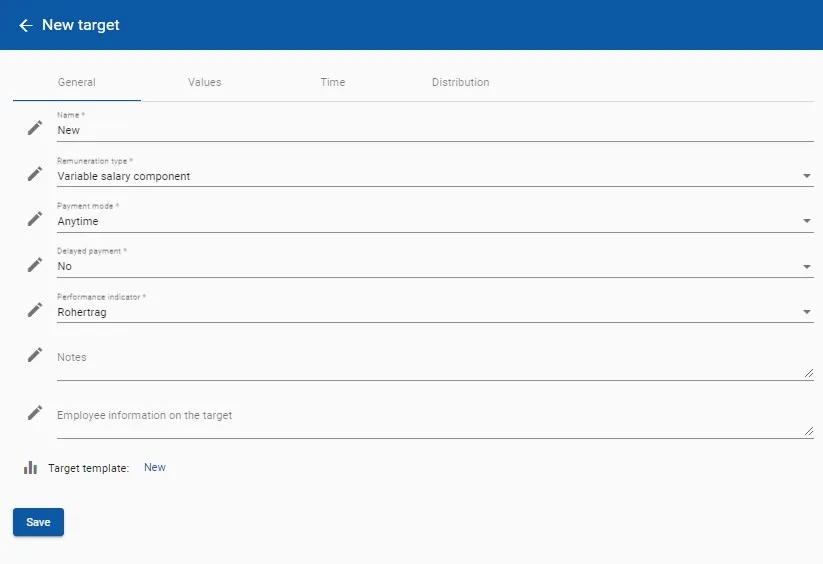
The variable compensation concept results from the combination of different targets for each employee. Targets are created for each employee in the interface.
A wide variety of targets can be created and compensated in maXzie, such as quantitative targets, qualitative targets, project and point targets, team and collective targets.
The General tab defines:
- Name
- Compensation type (variable salary component, bonus “on top” - relative (proportional), bonus “on top” - absolute (complete) or commission): These types of compensation can also be combined in different targets.
- Payout mode (monthly, save when overachieving, after reaching a partial target or once after completion): An individual payment mode for the bonus can be set for each target.
- Save above degree of target achievement (in %): If the payout mode “Save when overachieving” is selected, this field appears. The target achievement level up to which monthly payouts should be made can be entered here.
- Payout delay (None, One sub-target, According to LKZ delay, Three months): Example: the “contribution margin” key figures that employees achieve in January are not available until March. They are therefore automatically included in the March billing. Using the parameter mentioned, bonus payments can also be adjusted to the (key figure) delay.
- Performance indicator: Connection of the target with the previously defined performance indicator so that the actual numbers coming via the interface are correctly assigned and the other parameters, such as the number of sub-targets, are correctly displayed in the “DISTRIBUTION” tab.
- Notes: An internal note that only users with permission to view targets can see.
- Employee info on payroll: Information that is displayed to the employee on their payroll for this target.

The Values tab defines:
- Target weight (i.e. share of the variable target income) or Amount of the bonus (depending on the type of compensation)
- Target value: The value to be achieved for 100% target achievement in the corresponding unit defined in the linked [key performance indicator](#key performance indicators).
- Bonus curve template (Standard Positive, Positive without cap, Standard Negative,
Commission in Percent, Commission Per Unit): The bonus curve used to calculate the bonus for this target. The
following fields are displayed:
- Standard Positive, Positive without cap and Standard Negative:
- Lower performance point (LPP in %)
- Upper performance point (UPP in %)
- Bonus ratio at LPP (in %)
- Bonus ratio at UPP (in %)
- for Positive without cap: Overperformance point (OPP in %)
- for Positive without cap: bonus ratio at OPP (in %)
- Commission per unit:
- Commission per unit
- Commission in percent:
- Commission in percent
- Standard Positive, Positive without cap and Standard Negative:
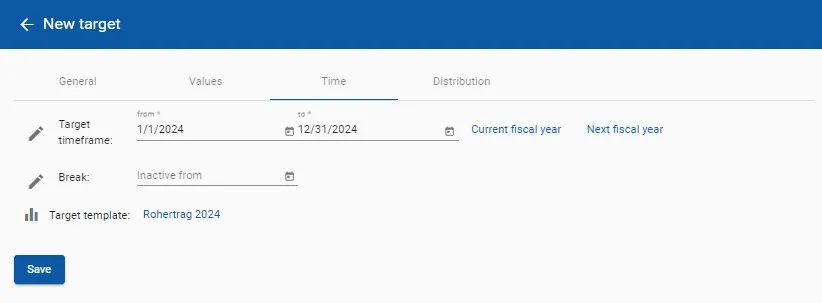
The target period and, if necessary, a termination date are defined in the Time tab. An individual target period can be defined for each target. A target can be canceled at any time.
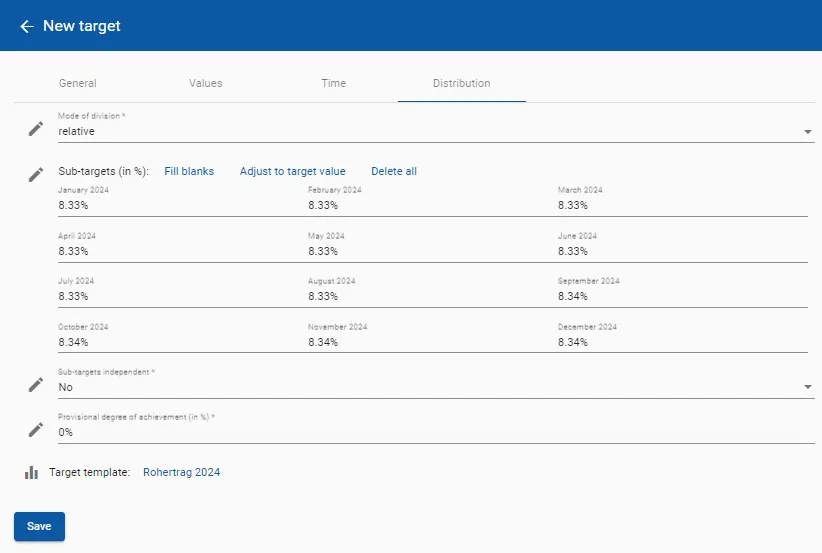
The following is defined in the Distribution tab:
- Mode of division (relative or absolute): Specifies whether the sub-targets should be defined relative to the target value or as absolute sub-target values (in the correct unit).
- Sub-targets: The distribution of the target value over individual time windows (depending on the reporting period of the performance indicators) can be specified here. This allows seasonal curves to be mapped. An assistant makes it easier to enter the individual sub-targets.
- Sub-targets independent: This allows the sub-targets to be configured to form independent goals.
- Provisional degree of achievement (in %): e.g. if PLB targets are to be paid out in advance in a certain amount, although the assessment will only take place later.
Videos
Section titled “Videos”Bonus curve templates
Section titled “Bonus curve templates”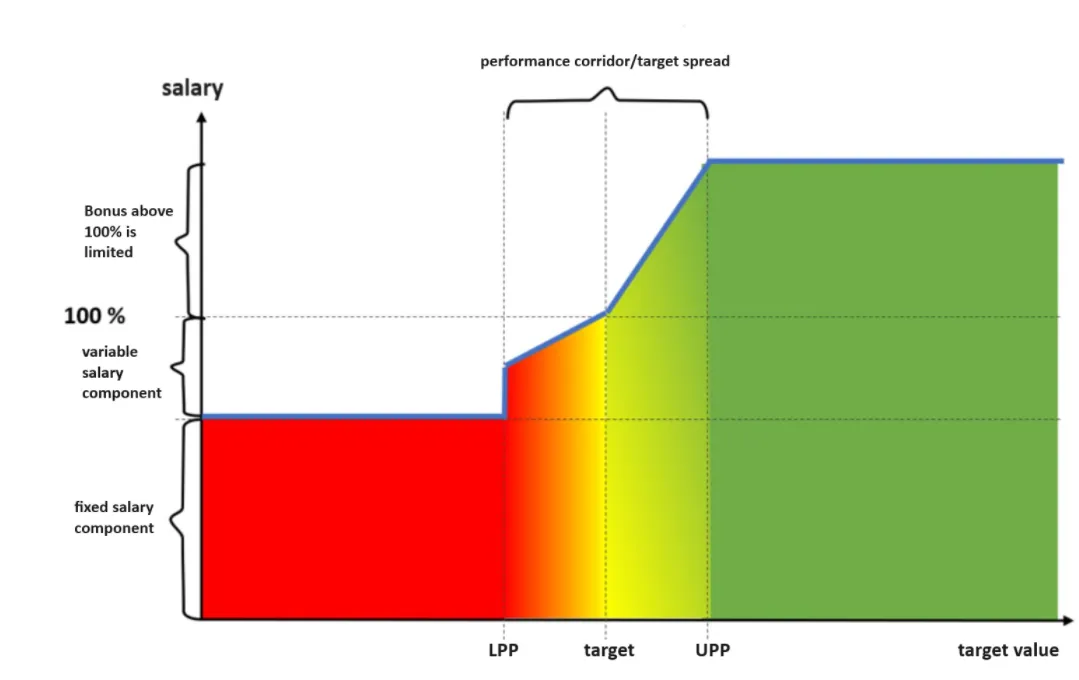
The Standard Positive curve is characterized by the following sections:
- There is no bonus for performance values below the lower performance point (hereinafter LPP).
- Once the LPP is reached, a bonus is paid, the value of which increases linearly between the LPP and 100% target achievement.
- The value also increases linearly between 100% target achievement and the upper performance point (hereinafter UPP); the gradient can be different from the gradient below 100% target achievement.
- When the UPP is reached, the bonus is capped, i.e. the bonus does not increase further above the UPP.
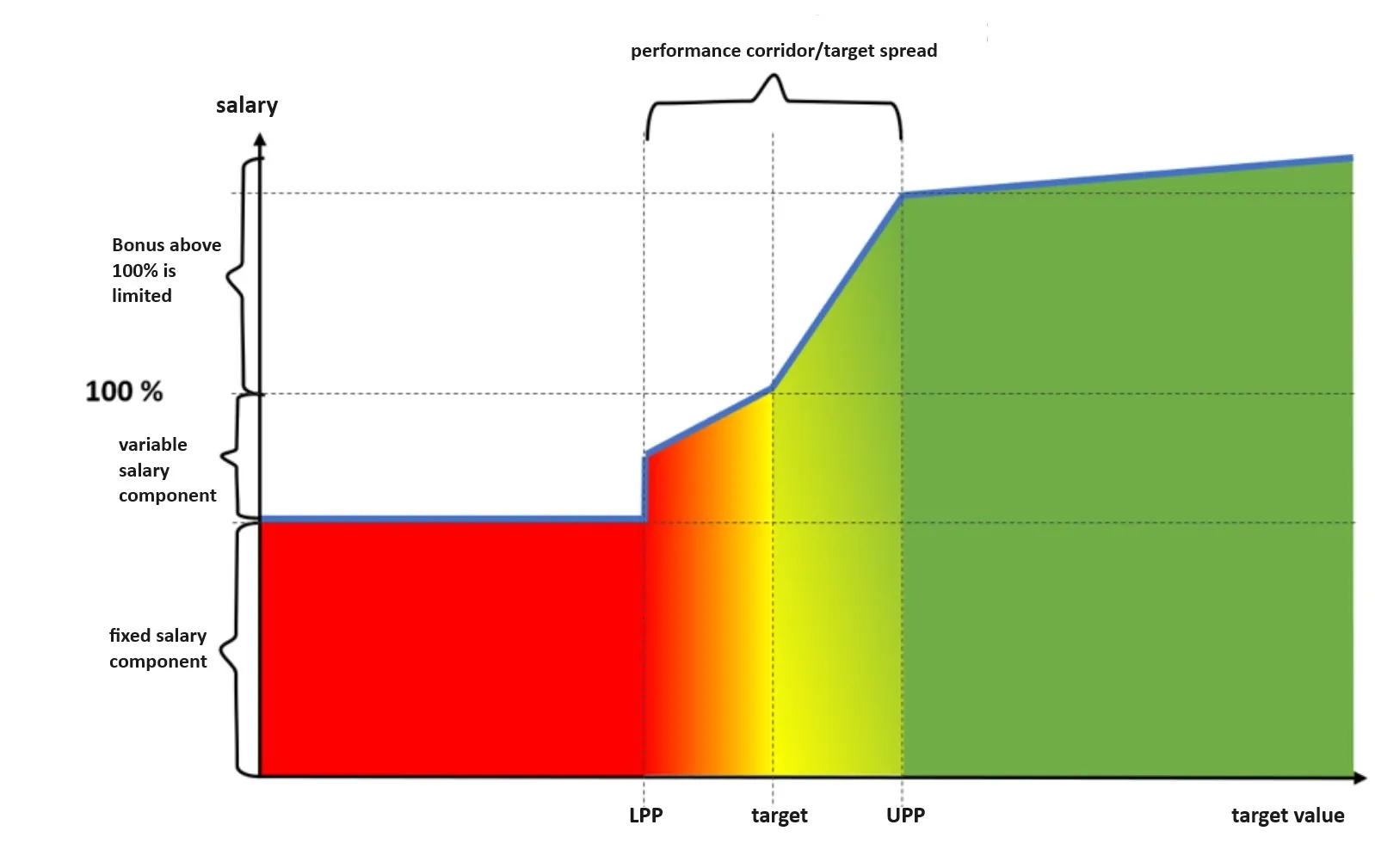
The Positive without cap curve is similar to the Standard Positive curve (see above), but differs in the calculation of the bonus above the UPP: Instead of a cap above the UPP, the curve there is provided with a further (often moderate) slope , which leads to an increase in the bonus with a higher degree of target achievement even after the UPP has been achieved.
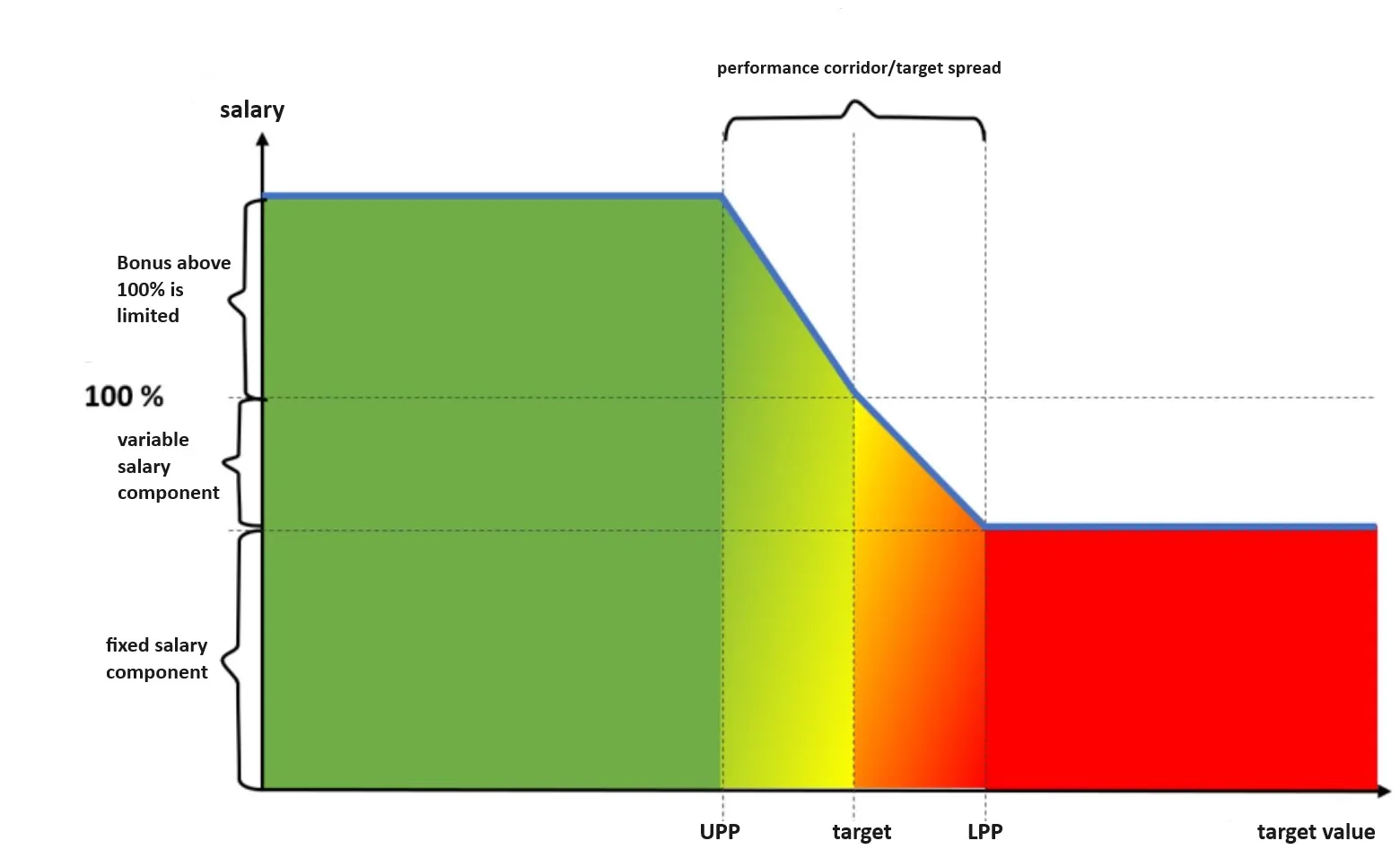
The Standard Negative curve is similar to the Standard Positive curve, but with the opposite effect: higher performance values lead to a reduced bonus. This curve can be used for a bonus on performance indicators such as rejects, complaints, number of returns, etc., the value of which should be kept as low as possible in the interests of the company.