Transactions
Transactions can be used to integrate any type of data into maXzie. These can be imported from external systems or created manually. Typical use cases are personal performance evaluations, activities or orders. Performance values can then be calculated from this data.
The structure and resulting calculations must be managed together with the News Innovativ support team.
Card view
Section titled “Card view”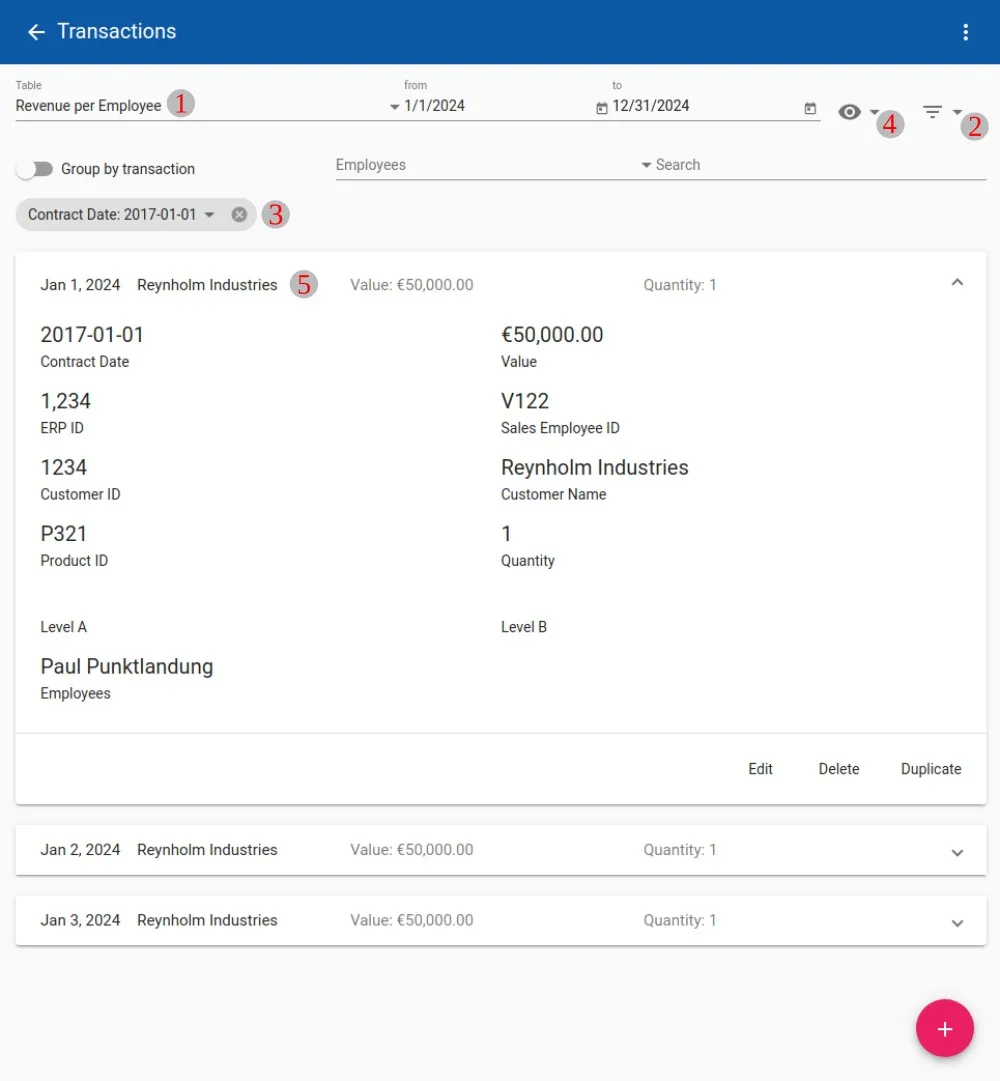
Filter: The transactions can be filtered using the fields in the upper area (1). The corresponding business transaction schemas can be selected using the Table field. The from and to fields only display transactions for the selected period. The Employee field can be used to select an individual employee to only display transactions for that employee. With the Search all fields of the transactions can be freely filtered by terms. By clicking on the (2) icon, additional filter criteria can be selected that relate to the individual field values of the business transaction. By clicking on a filter by category, another input option appears (3). After clicking on this, a value for filtering can be selected.
View: By clicking on the “eye” icon (4), you can choose between the card view (current view) and the table view.
Cards: When the cards are closed (seen in the bottom of the picture), only individual pieces of information are presented. By clicking on a closed card, it opens and is displayed like (5). Here you can view all information about the open business transaction and modify the business transaction by clicking on one of the buttons in the bottom bar. If these buttons are not displayed, editing transactions may be forbidden.
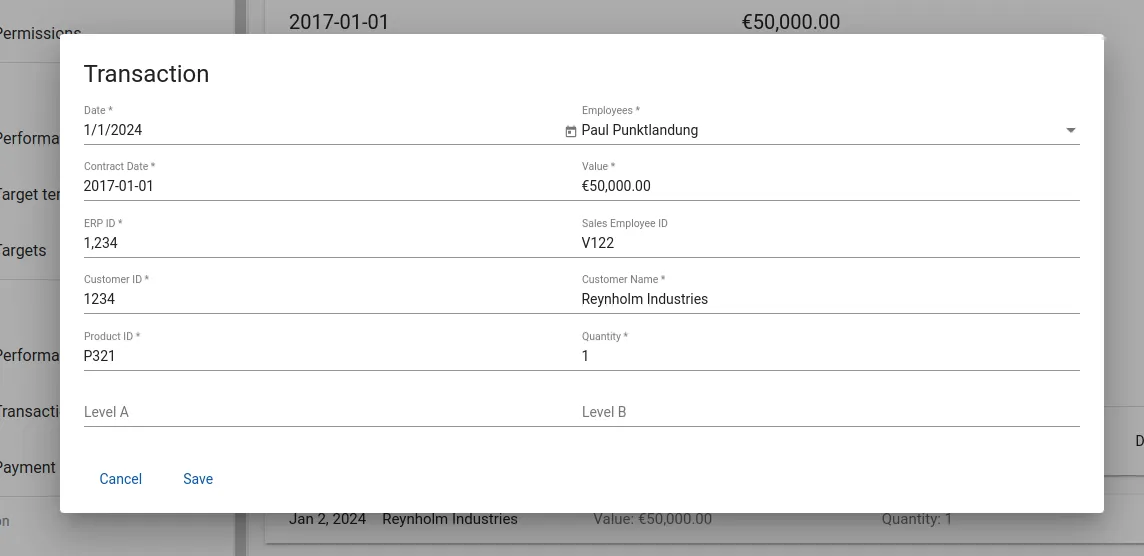
Create new business transaction: By clicking on the ”+” button at the bottom right, new transactions can be created for the business transaction selected in (1). A dialog opens in which the values can be entered.
Table view
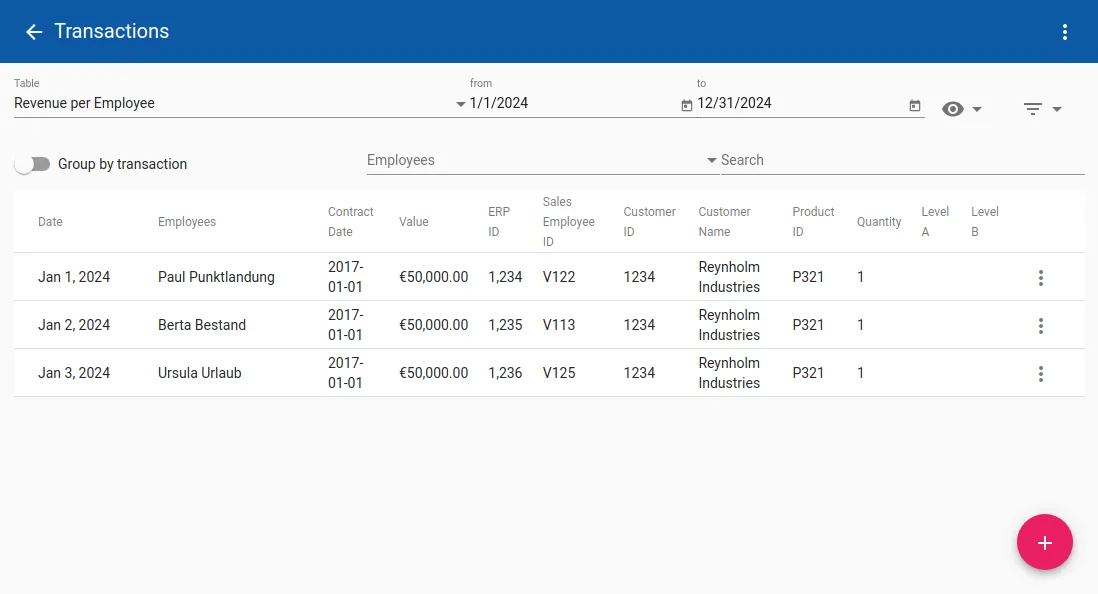
Section titled “Table view”Transactions can also be displayed in a table.
Editing transactions
Section titled “Editing transactions”Transactions can be customised using the Edit, Duplicate and + buttons. The Delete button can be used to delete
business transactions.